

Assigning rent reviews keeps it clear who owns what, so the right property manager picks up each one.
1. Open the rent reviews list and filter for unassigned properties
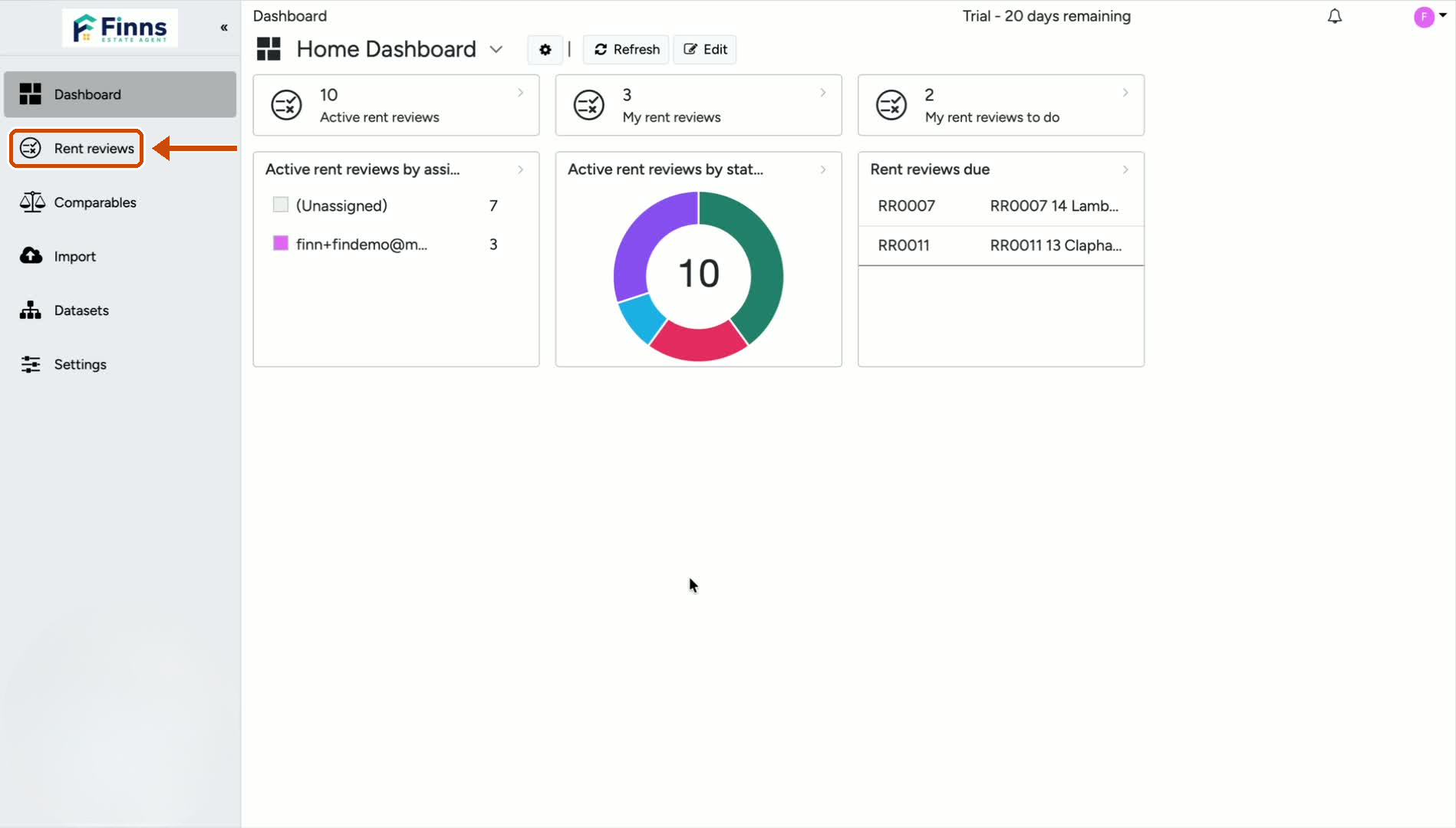
Go to Rent Reviews.
Use the Assigned User filter.
Select Unassigned to show only properties that have not yet been allocated to a property manager.
Click Apply to update the list.
2. Open the property you want to assign
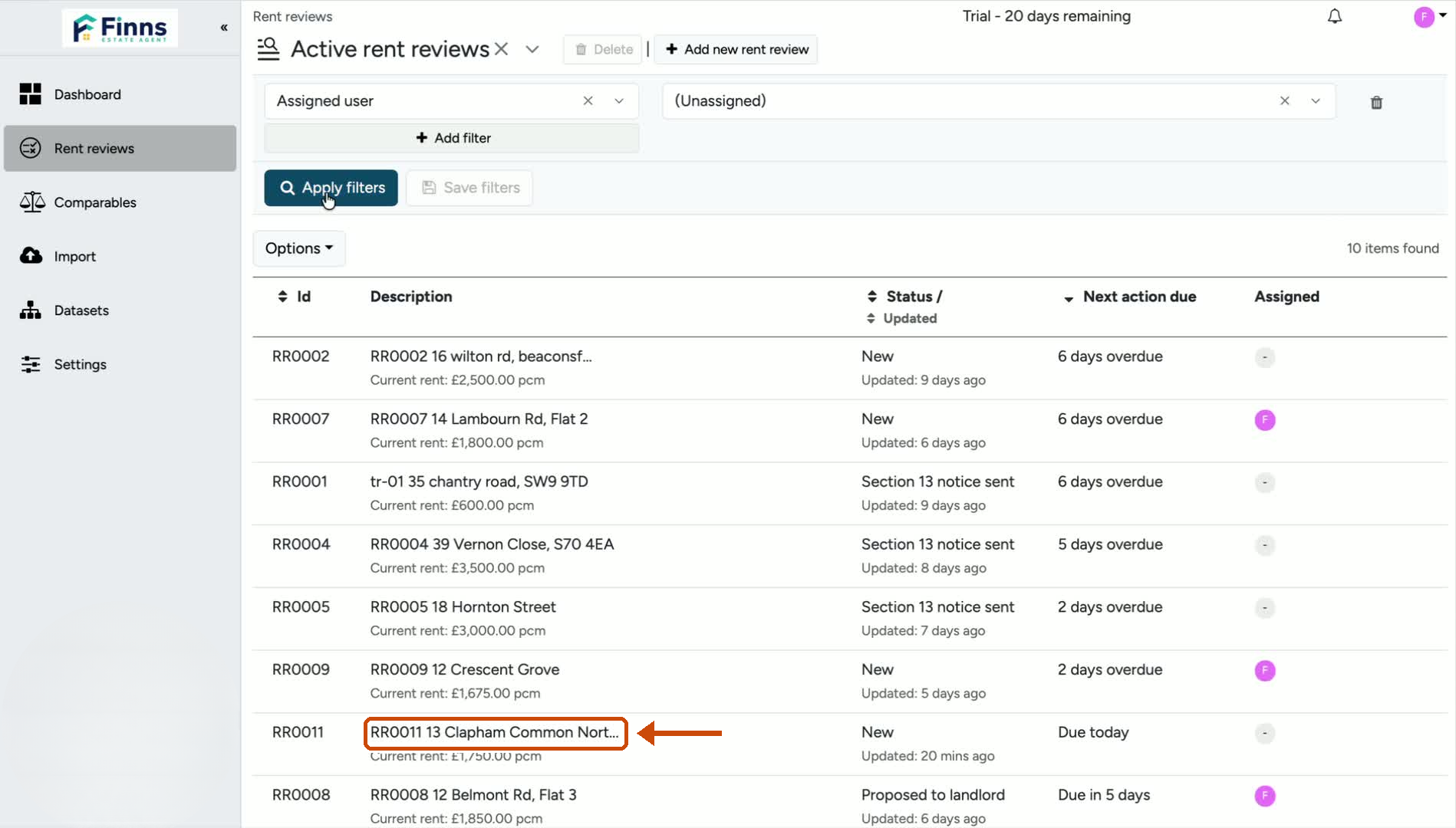
Review the filtered list of unassigned properties.
Click into the property you want to work on, such as 13 Clapham Common North.
3. Assign the property to a manager
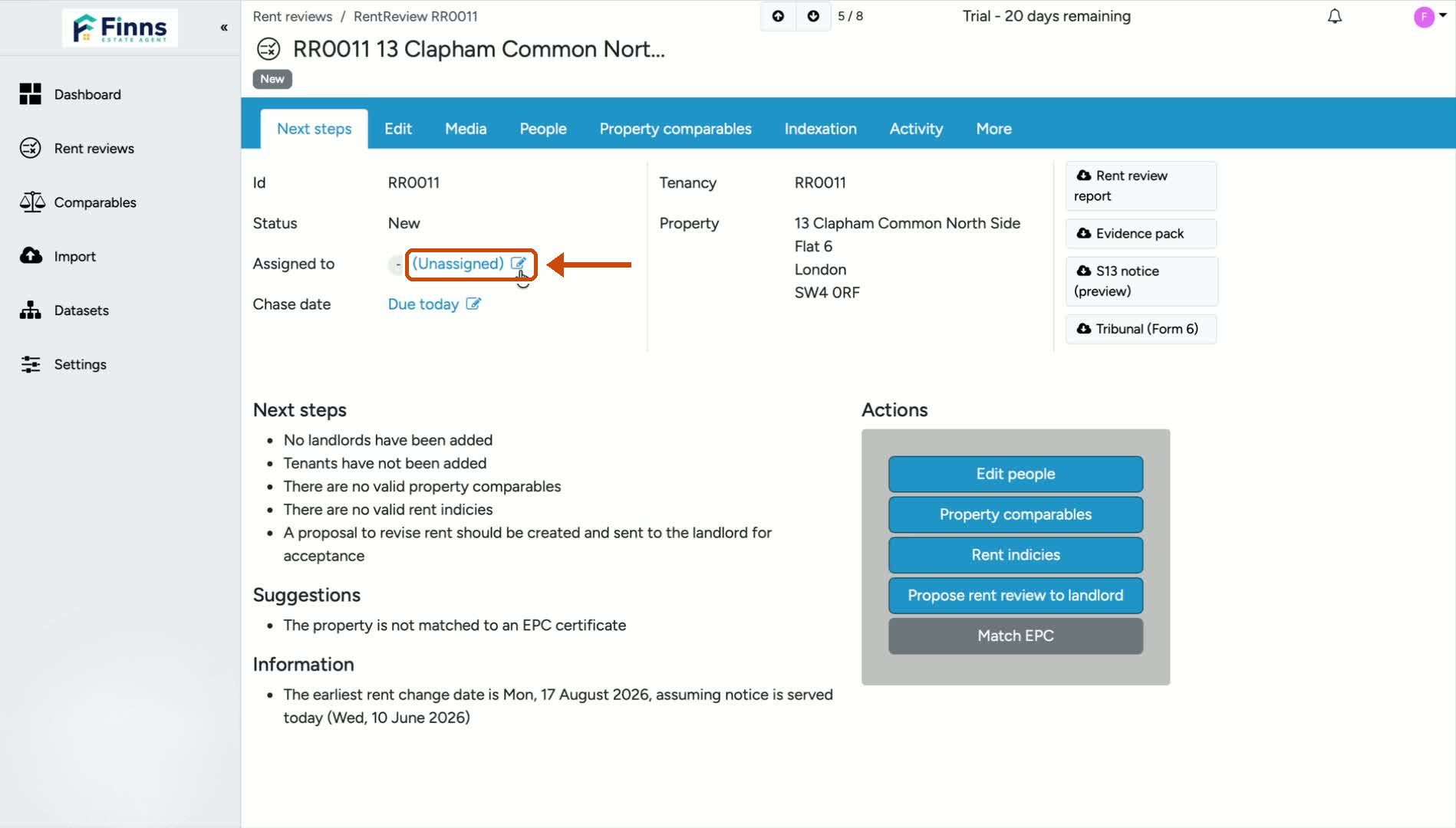
Click the Assigned To button.
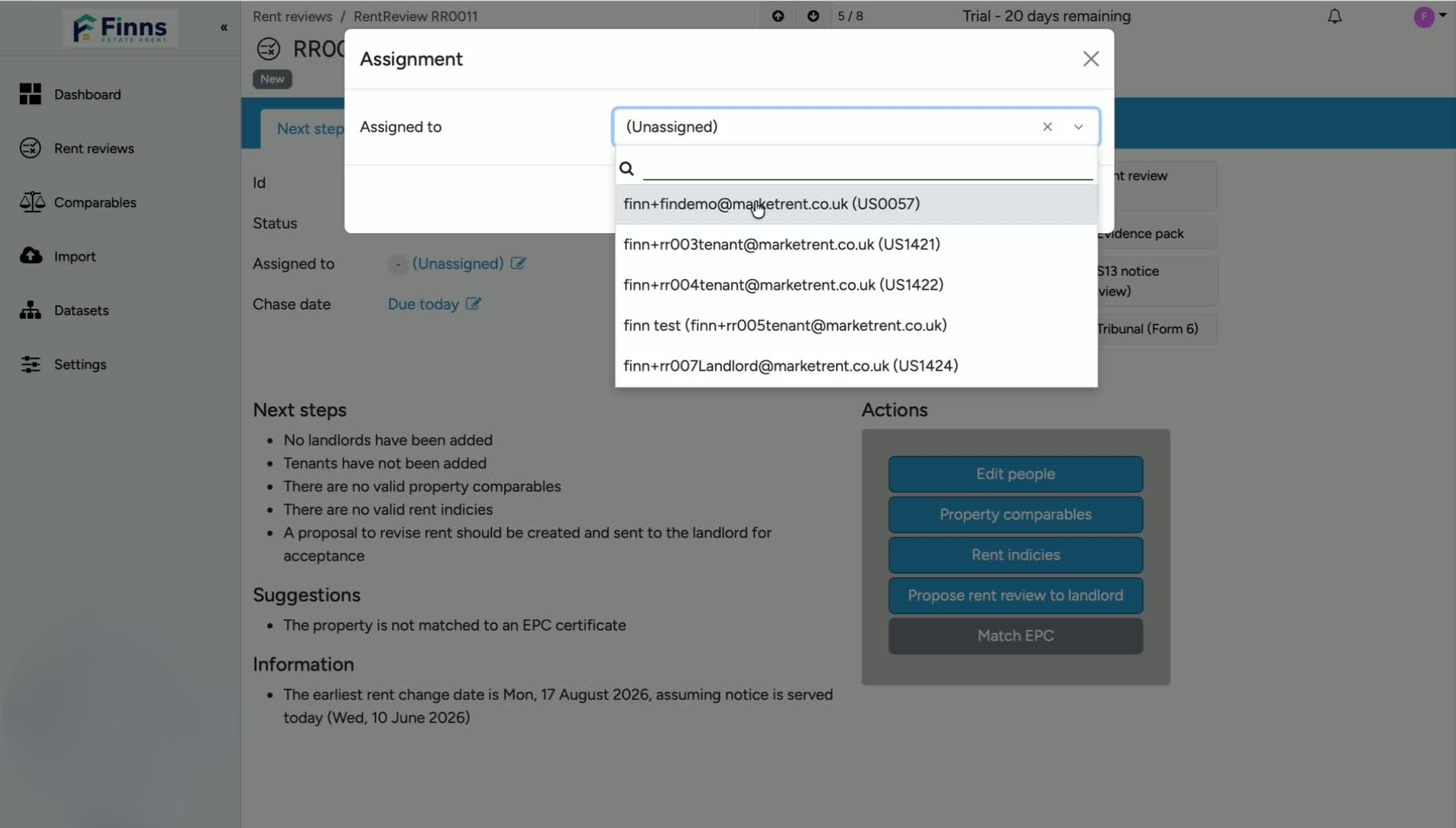
Choose the property manager you want to assign the rent review to.
Confirm by clicking OK.
The property will now show as assigned to that user.
4. Verify the assignment by filtering for that user
Click the assigned user's name, such as Findemo, to view only their properties.
This lets you confirm the assignment worked.
You can now see all properties currently assigned to that property manager.
Still have a question, or some feedback?
Email us at: hello@marketrent.co.uk.