
Editing your email templates lets every message to landlords and tenants sound like your agency — it's quick to tailor.
1. Open the content templates area in settings
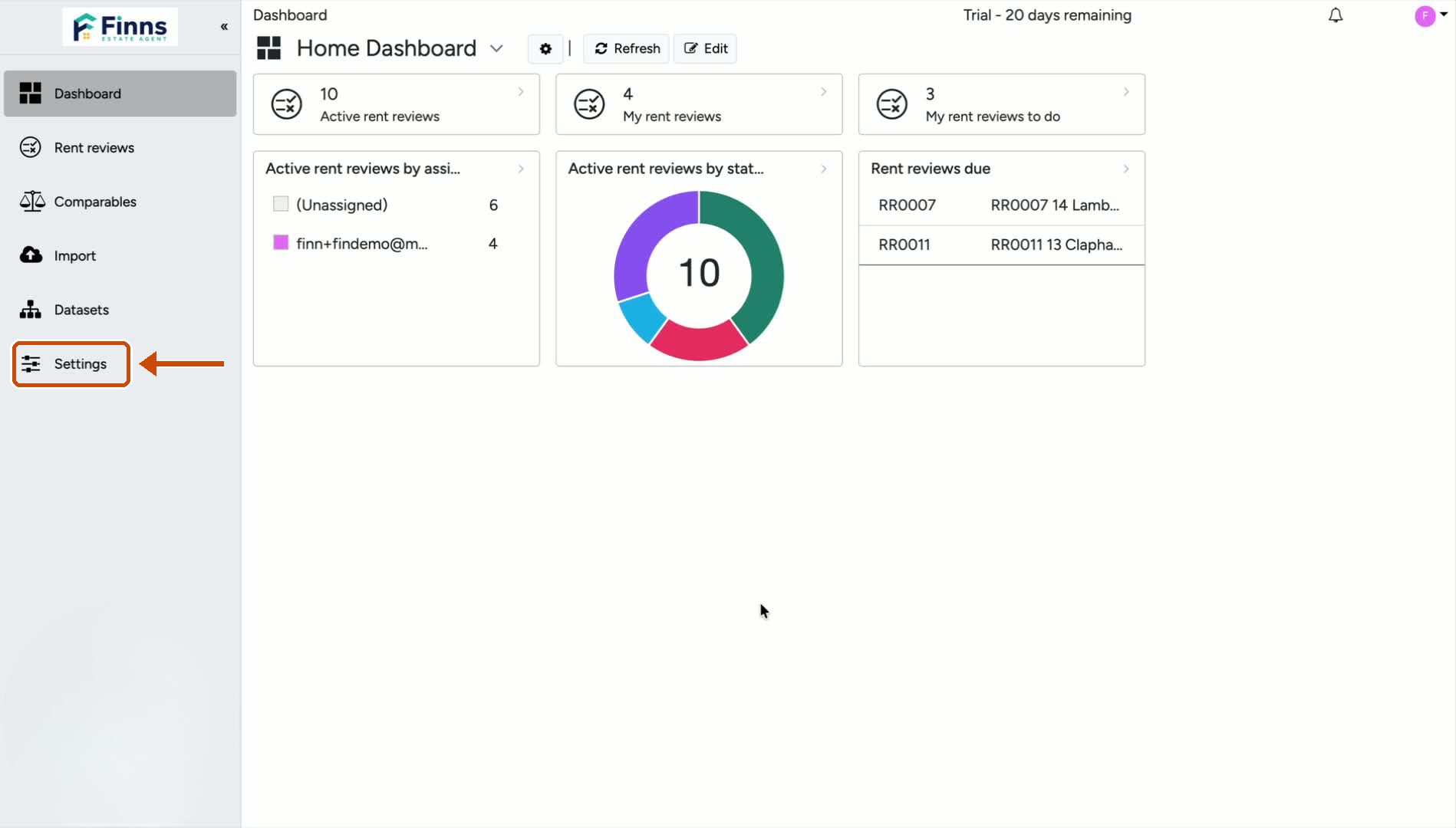
Go to Settings.
Click the Content Templates tab.
This is where the automated emails for landlords and tenants are stored for different stages of the rent review process.
2. Choose the email template you want to customise
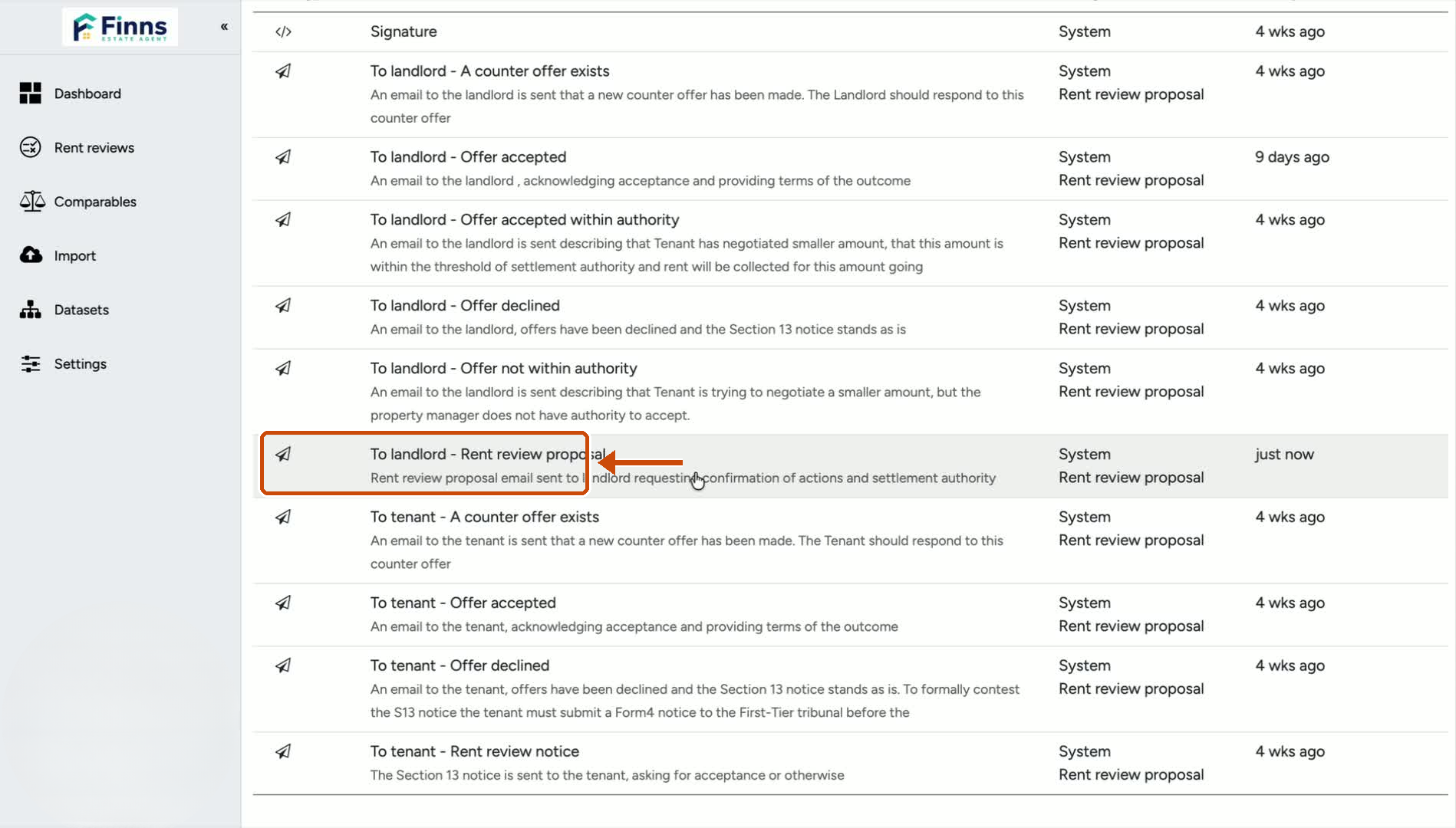
Select the template you want to edit.
In the example, the Rent Review Proposal email is chosen.
This is the first email sent to the landlord in the process.
3. Edit the email content
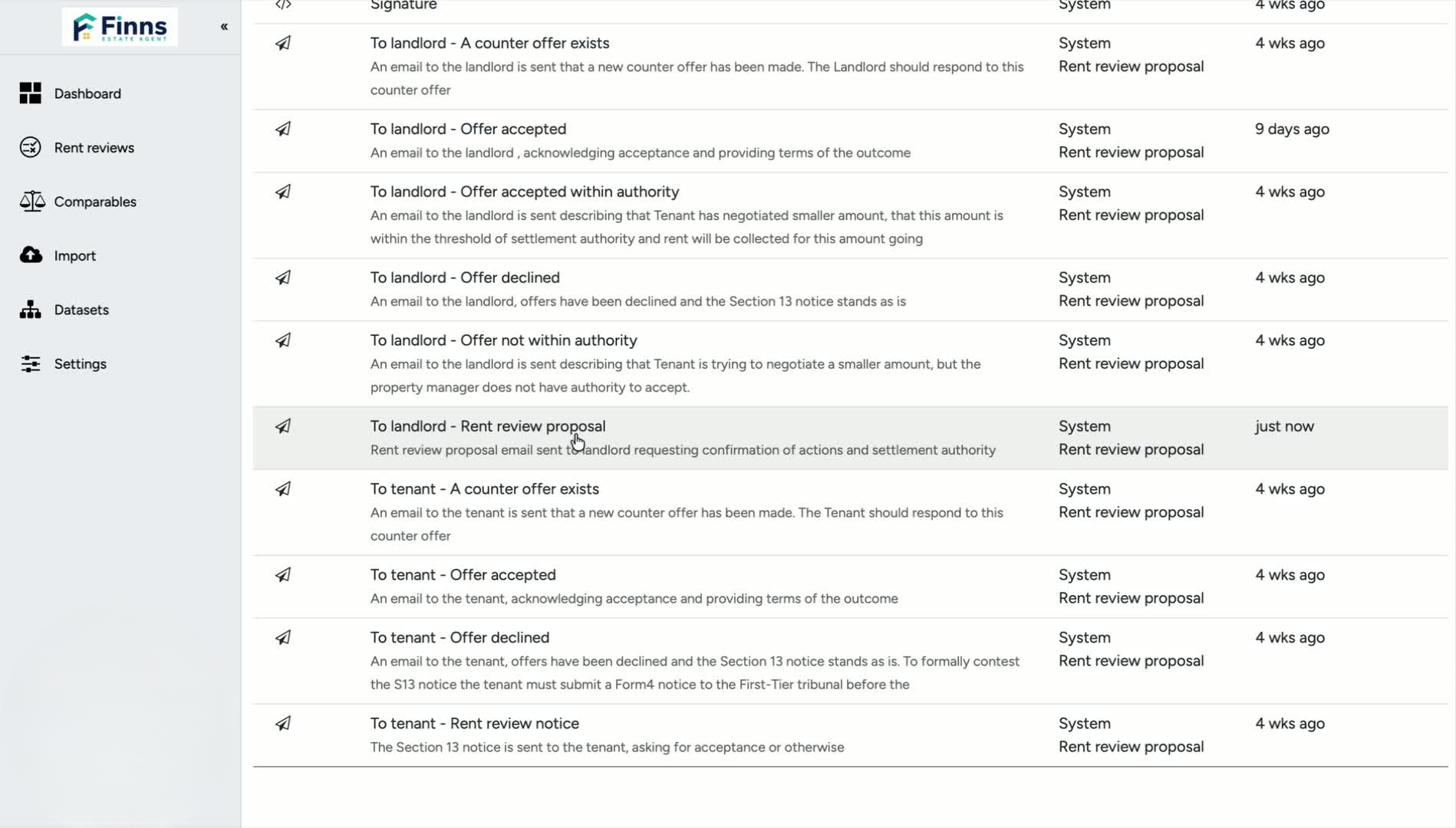
Review the current email text.
Make your changes directly in the template.
Example edit: add a simple personal greeting like “Hope you are well” to make the message feel more personal and aligned with your agency branding.
4. Save and compare your changes
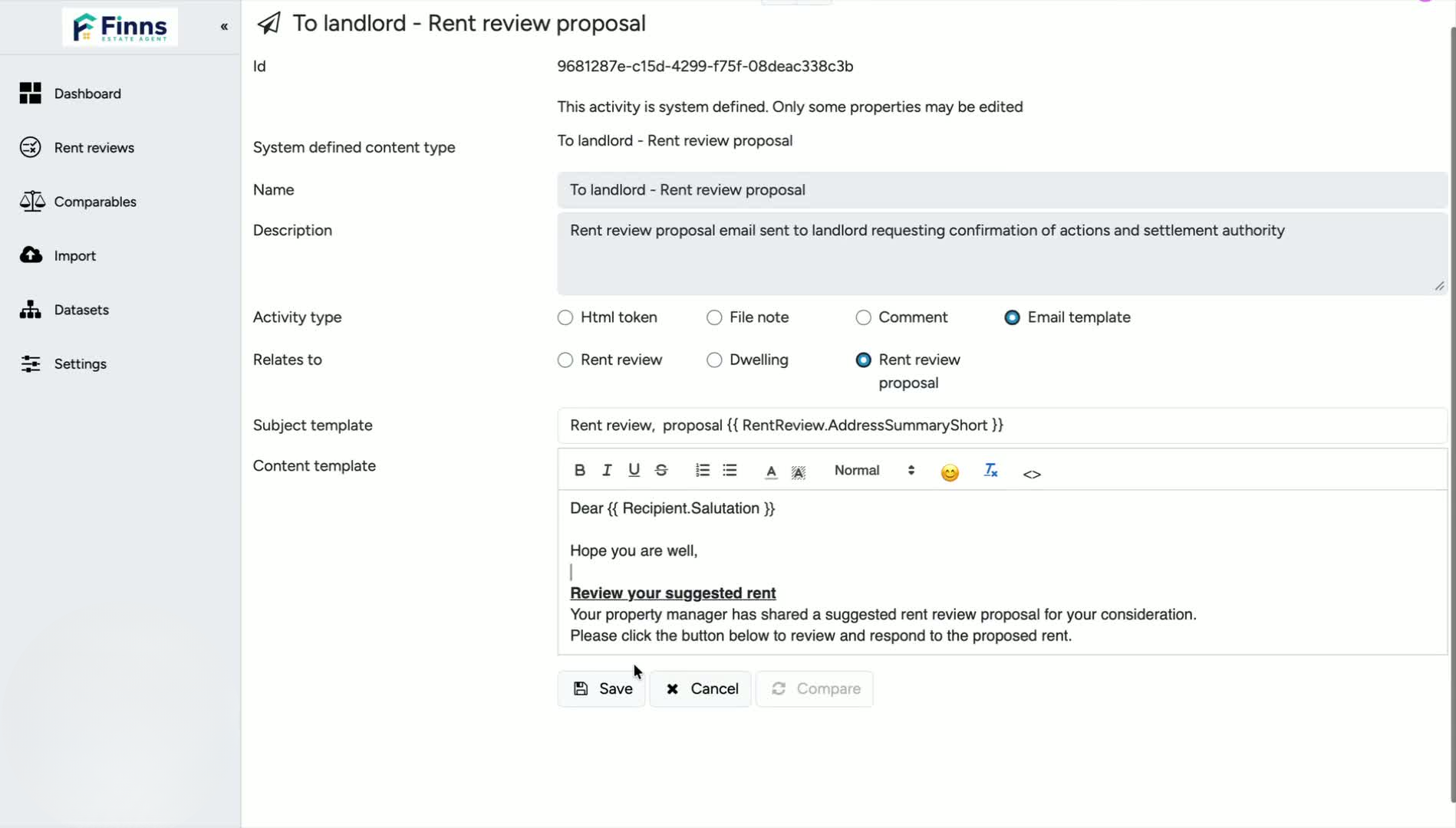
Click Save to apply the update.
Use Compare to view the old version next to the new version.
This helps you confirm exactly what changed before finalising.
5. Finalise the template
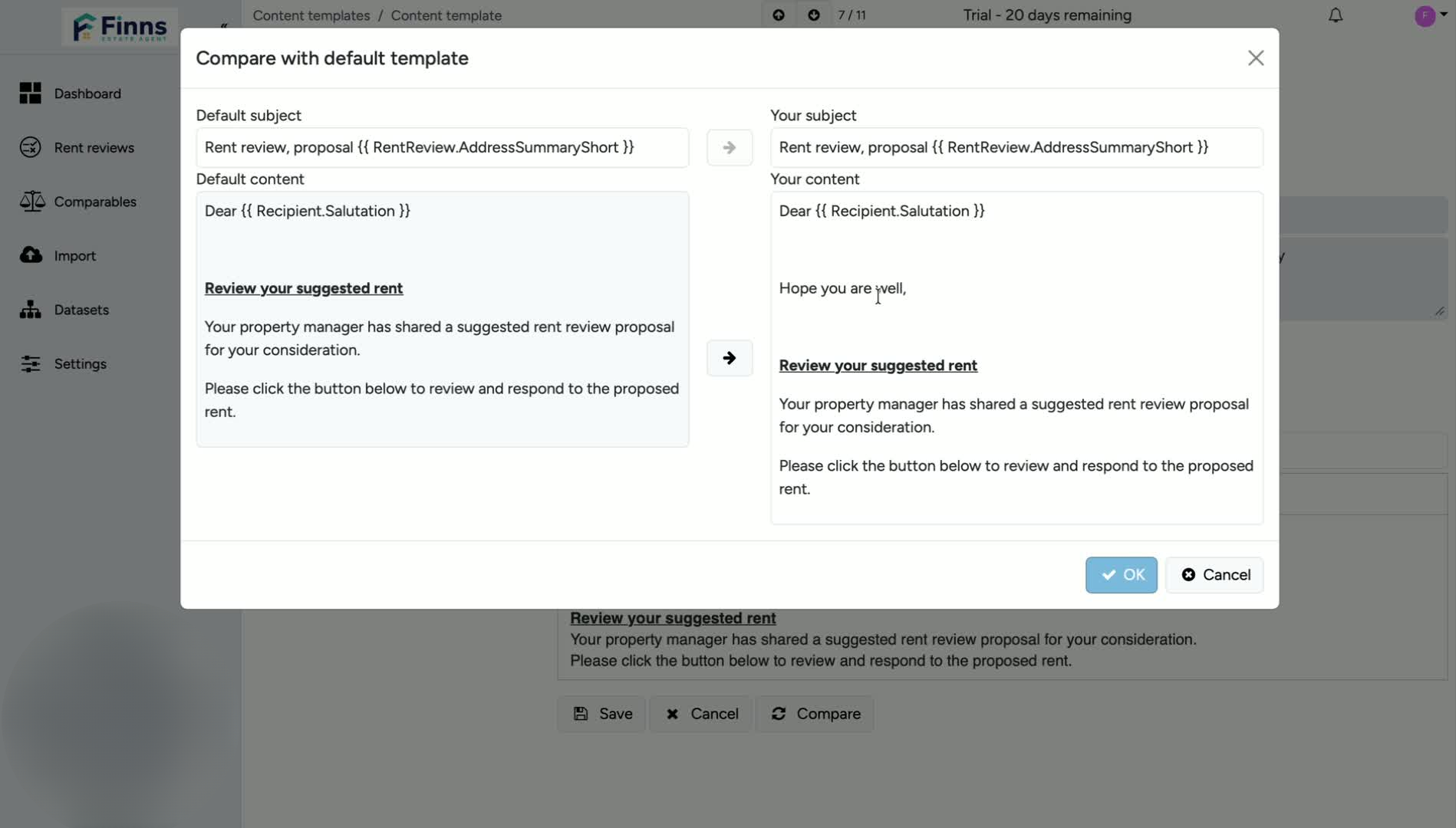
Review the updated template one last time.
If needed, click Cancel to exit the comparison view.
Click Save again to keep the final version of the email template.
Still have a question, or some feedback?
Email us at: hello@marketrent.co.uk.