

Adding the right landlords and tenants keeps everyone correctly attached to the rent review — it only takes a moment.
1. Open the rent review and go to the people section
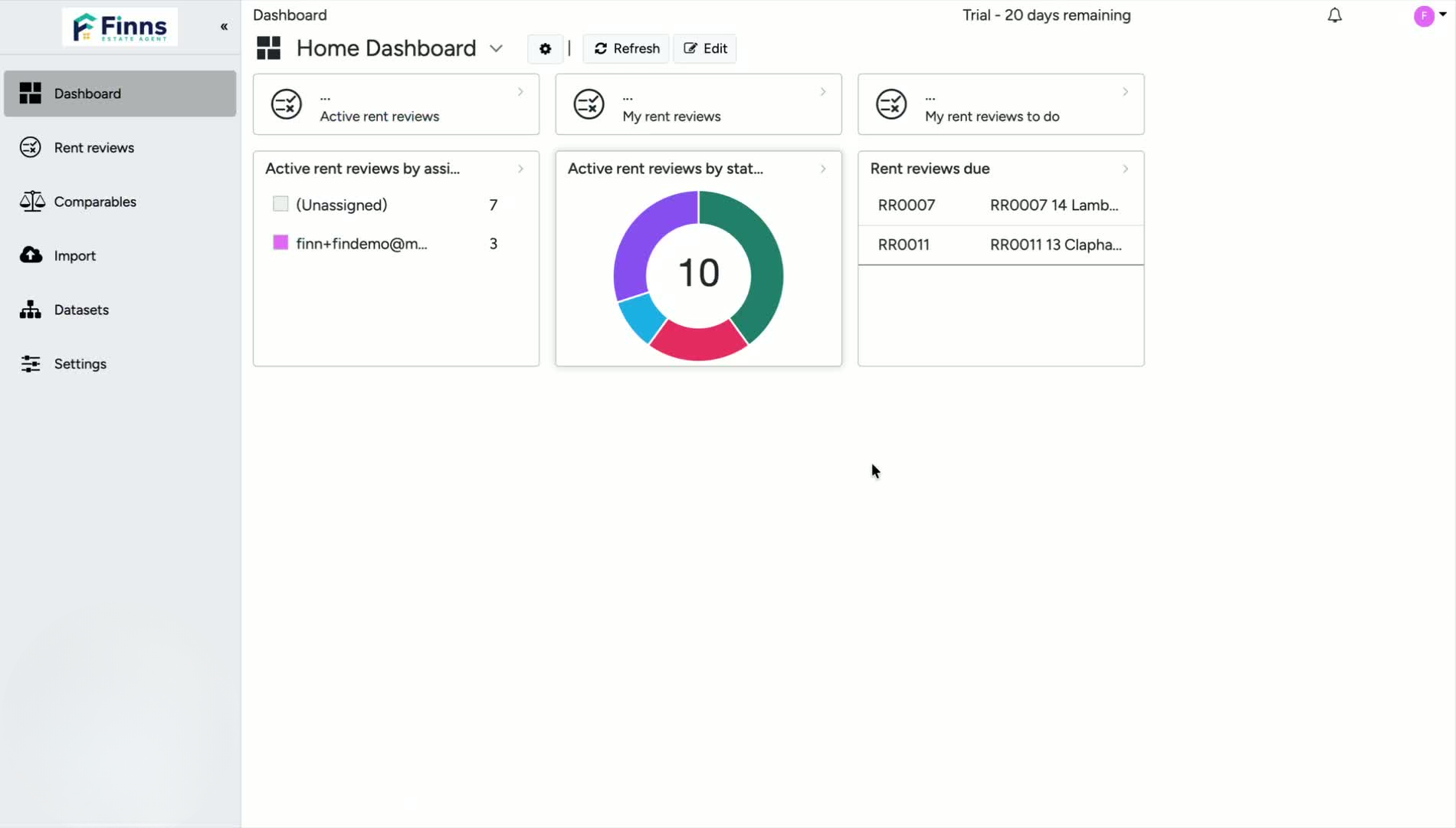
Start from the Rent Reviews area and open the relevant property.
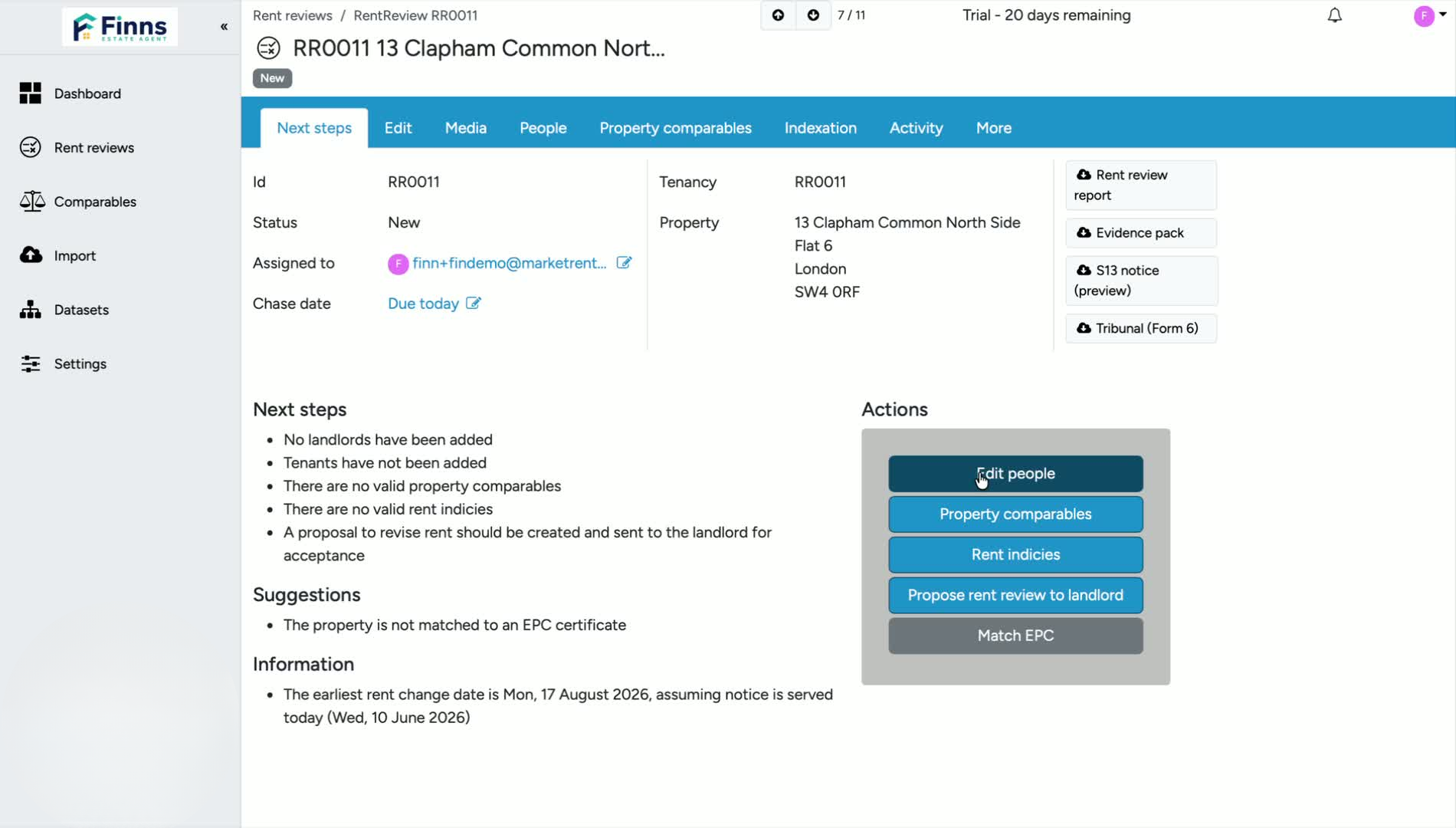
On the Next Steps page, look for the option to edit people.
You can access this either by:
- Clicking the Edit People action, or
Clicking the People tab at the top.
2. Check whether landlords or tenants are already added
The property may currently show no tenants or landlords.
If no one has been added yet, you can begin assigning them from this screen.
This is where you manage all landlord and tenant records for the rent review.
3. Add a tenant
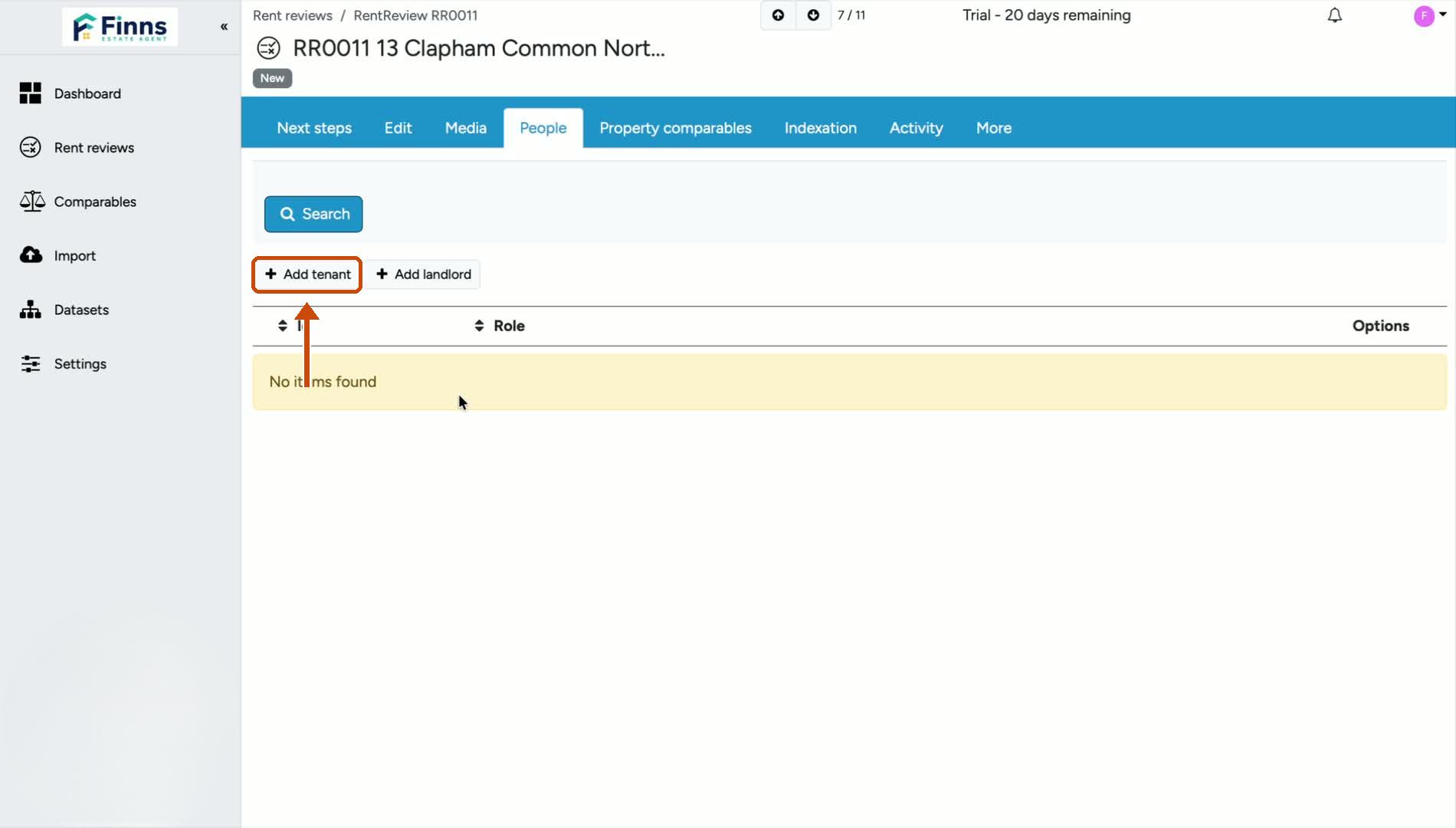
Click Add Tenant to assign an existing tenant.
If the tenant is already in the system, select them from the dropdown.
If they are not yet in the system, click Add Tenant and enter their details manually.
4. Add a landlord
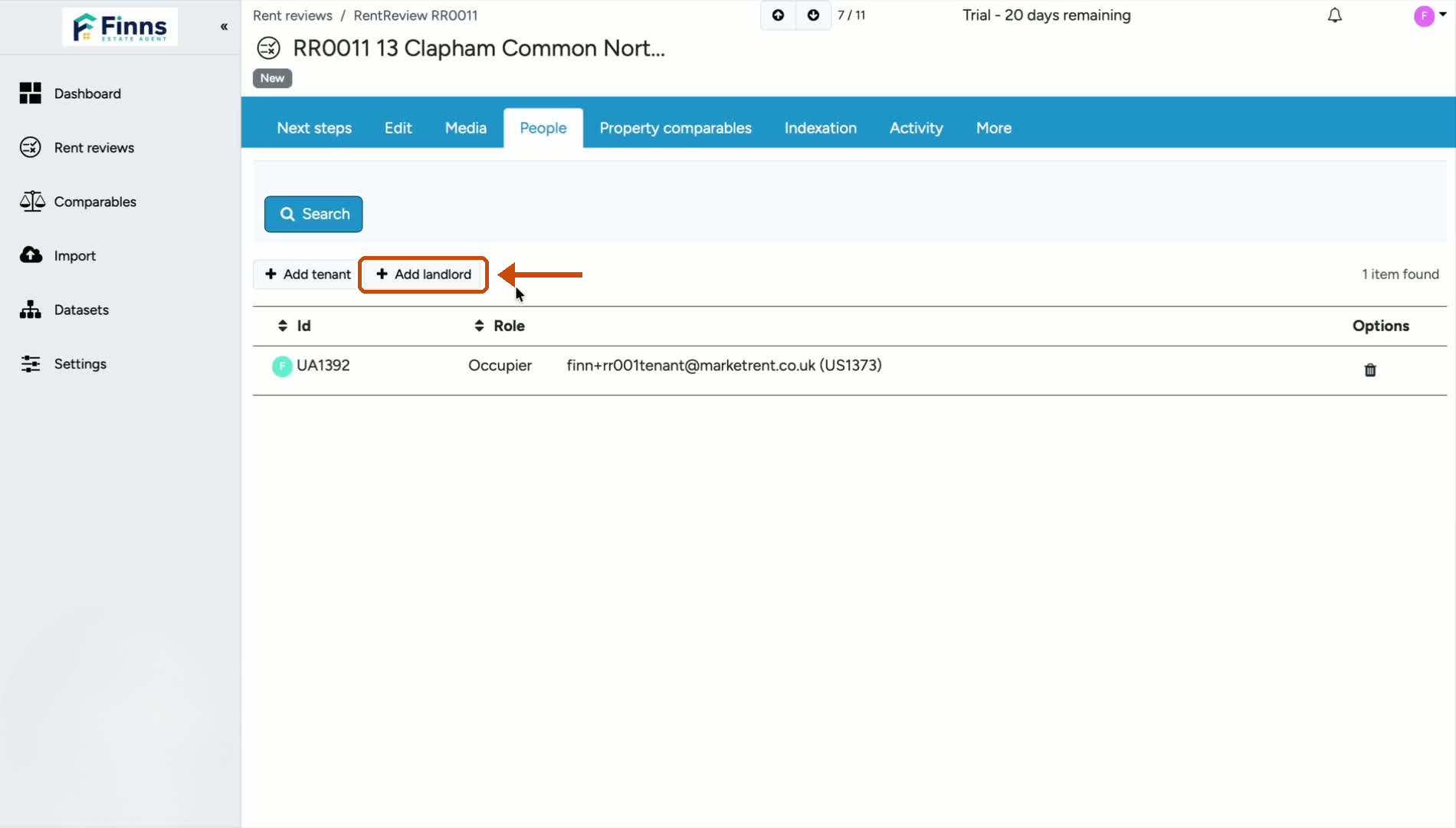
Click Add Landlord to assign a landlord.
If the landlord already exists in the system, choose them from the dropdown.
If not, select Add Landlord Details and fill in their information.
When finished, click Save.
5. Confirm the people have been added
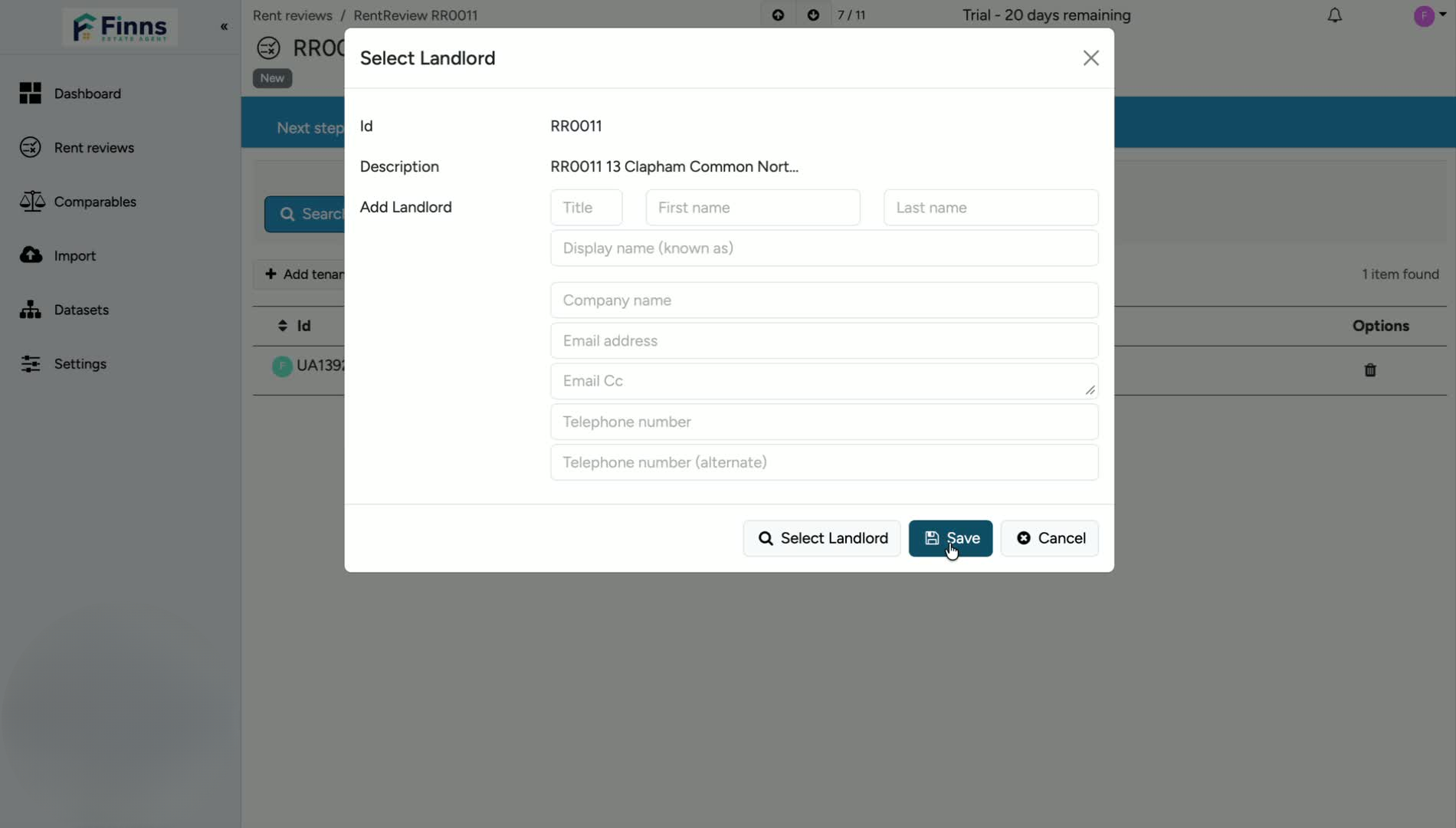
After saving, the landlord or tenant should appear on the property.
In the example, the landlord is selected from the existing records and successfully added.
If you need to add multiple landlords or tenants, click Add again and repeat the process.
Still have a question, or some feedback?
Email us at: hello@marketrent.co.uk.